
If your WooCommerce delivery zone not accurate problem keeps causing pricing complaints, you’re not alone. Inaccurate delivery zones create shipping charges woocommerce pricing inconsistencies that damage customer relationships and business profitability. Traditional woocommerce shipping calculation methods using arbitrary geographical boundaries lead to unfair woocommerce shipping fees where nearby customers overpay while distant deliveries lose money, creating frustration and cart abandonment through poor woocommerce shipping cost experiences.
5 Proven Fixes for a WooCommerce Delivery Zone Not Accurate
Before switching tools, it helps to understand exactly why zone-based shipping goes wrong — and what actually fixes it. Here are five proven fixes store owners use to solve a WooCommerce delivery zone not accurate setup for good.
Fix 1: Replace Zones with Real Driving Distance
The single biggest fix is abandoning fixed zone boundaries entirely. Zones are drawn by postal code or radius, not by actual roads, so two customers “in the same zone” can be 3km and 25km away in reality. Calculating live driving distance instead of a static boundary removes this problem completely.
Fix 2: Automate Distance Calculation with Google Maps
Manually redrawing zones every time your customer base grows is unsustainable. Automating the calculation through the Google Maps API means every new address is priced correctly the moment it’s entered — no manual maintenance required.
Fix 3: Show Customers the Math
A large share of shipping complaints come from customers who don’t understand why they’re being charged a certain amount. Displaying the calculated distance and rate live at checkout builds trust and cuts down on support tickets and cart abandonment.
Fix 4: Set Rate Tiers Instead of One Flat Zone Price
Rather than one price per zone, tiered pricing brackets (e.g., $5 for 0–5 KM, $10 for 5–15 KM) let you scale fees gradually with distance, so pricing stays fair at every boundary instead of jumping sharply between zones.
Fix 5: Cap Your Delivery Radius
Zone systems often accidentally include addresses too far to deliver profitably. Setting a maximum delivery distance prevents orders from being placed outside a range you can realistically serve, protecting both your margins and delivery times.
How the Distance Calculator Plugin Fixes an Inaccurate Delivery Zone
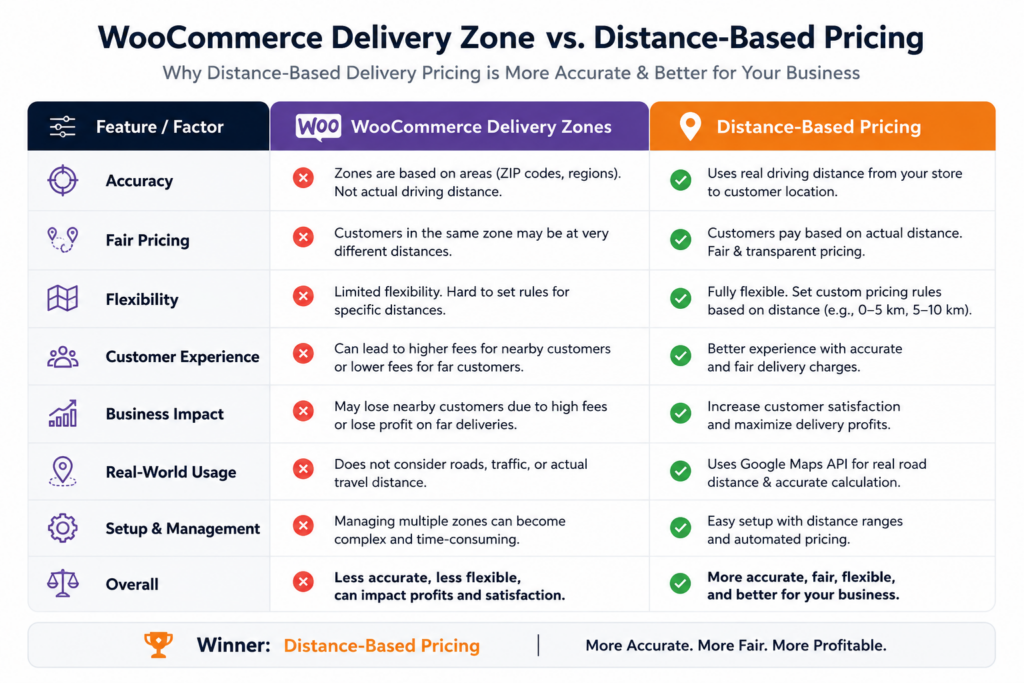
The Calculate Prices based on Distance For WooCommerce plugin eliminates zone-based guesswork by calculating exact distances using Google Maps technology for precise woocommerce distance rate shipping determination. This system replaces arbitrary boundaries with real-world calculate shipping cost for woocommerce distance measurements, ensuring every customer pays fairly based on actual delivery requirements — solving the woocommerce delivery zone not accurate problem at the source instead of patching it with more zones.
Zone Problems vs Distance Calculator Solution
Free vs Pro Version Features
Free Version – Download Now
- Distance-Based Pricing – Automatically calculate delivery charges based on the distance between your store and the customer’s address
- Google Maps Address Autocomplete – Provides address suggestions in real time, improving checkout speed and accuracy
- Charge Per Kilometer or Mile – Fully customizable delivery charges based on preferred unit.
- Delivery Datepicker & Timepicker – Allow customers to choose preferred delivery date and time
- Live Calculation Display at Checkout – Customers see calculated delivery charges instantly.
- Works Seamlessly with WooCommerce Classic & Block Checkout – Full compatibility with both checkout types
- Lightweight & Easy to Set Up – Designed for store owners and non-developers.
Pro Version – Buy Now
- Advanced Pricing Rules – Create tiered pricing brackets (e.g., $5 for 0–5 KM, $10 for 5–15 KM)
- Maximum Delivery Distance – Restrict deliveries beyond a certain radius
- Dual Address Fields – Allow pricing between two locations (e.g., pickup & drop-off)
- Priority Handling & Advanced Scheduling – Set time slot limits, preparation times, and lead times
- Admin Label Customization – Rename plugin labels for better customer UI experience
Setup Guide
Start by installing the free plugin from WordPress.org. Then follow our complete setup tutorials:
Step 1: Get your Google Maps API Key
Step 2: Configure your plugin for distance-based shipping
Step 3: Enable PRO features like tiered pricing
Learn how our plugin works.
Test the Plugin Live (Free vs PRO Comparison): Try Live Demo
Video Walkthrough
Watch this quick walkthrough to see plugin in action:
FAQ: Fixing a WooCommerce Delivery Zone Not Accurate
Q: Will customers notice the change from zones to distance pricing? A: Customers appreciate more accurate calculations, especially those previously overcharged by zones.
Q: Can I gradually transition from zones to distance pricing? A: Yes, you can test distance-based pricing on select products before full migration.
Q: How do I explain distance pricing to customers? A: Distance-based pricing is more intuitive – customers understand paying based on actual travel distance.
Ready to eliminate a WooCommerce delivery zone not accurate setup for good? Start with the free plugin or contact the team for personalized shipping cost woocommerce migration assistance.