
WooCommerce Delivery Cost Calculator — Free Tool & Plugin 2026
A WooCommerce delivery cost calculator helps store owners automatically charge the right delivery fee based on how far each customer is from their store. Instead of guessing or using a flat rate that loses you money, this guide gives you industry average fees, a simple formula, and a free plugin to automate everything at checkout.
Table of Contents
Why Flat Rate Fails Your WooCommerce Store
Skipping a proper WooCommerce delivery cost calculation creates two problems. Nearby customers feel overcharged and abandon their cart. Far customers cost more than they pay and eat into your profit.
Example with $8 flat rate:
Customer 1km away pays $8 — feels unfair.
Customer 20km away pays $8 — costs you $18.
A WooCommerce delivery cost calculator based on distance fixes both problems automatically.
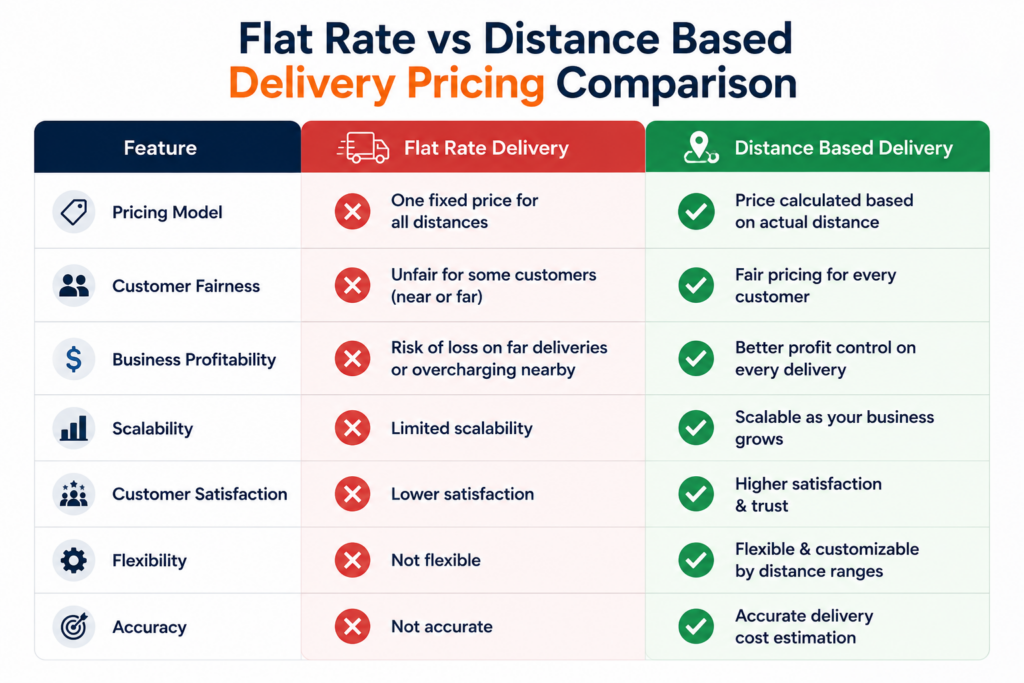
See how distance calculation works: How Does Distance Calculator Work
Automate Your WooCommerce Delivery Cost Calculator With a Free Plugin
Here is everything you get with our plugin:
Free Version Includes:
✅ Distance-Based Pricing — Automatically calculate delivery charges based on real driving distance
✅ Google Maps Address Autocomplete — Real-time address suggestions for faster checkout
✅ Charge Per KM or Mile — Fully customizable delivery charges
✅ Delivery Date and Time Picker — Allow customers to choose preferred delivery slots
✅ Live Calculation Display — Customers see exact delivery fee instantly at checkout
✅ Block and Classic Checkout — Compatible with both WooCommerce checkout types
✅ Store Pickup Option — Let customers choose between delivery and pickup
PRO Version Adds:
⚡ Advanced Tiered Pricing — Set different rates for different distance ranges (e.g., $5 flat for 0–5 KM, then $1.50 per additional KM up to 15 KM)
⚡ Maximum Delivery Distance — Restrict deliveries beyond a set radius
⚡ Store-to-Store & Custom Dual Addresses – Calculate delivery rates between two completely custom locations (perfect for point-to-point courier services)
⚡ Free Delivery Threshold — Automatically waive fee above a cart total
⚡ Force Checkout Address Verification – Prevent orders from processing until an accurate distance rate has been queried
⚡ Admin Label Customization — Rename plugin labels for better customer experience
How to Set Up This Distance Rate Shipping Plugin
Step 1: Install the Free Plugin
In WordPress go to Plugins → Add Plugin, search “Calculate Prices based on Distance For WooCommerce” then Install and Activate. Or download directly from WordPress.org.
Step 2: Get Your Google Maps API Key
Create two API keys in Google Cloud Console. Follow our guide: How to Get Google Maps API Key
Step 3: Set store location
Enter your origin address in the plugin settings.
Step 4: Choose units and rate
Select kilometers or miles; set price per unit (e.g., $1.50/km).
Step 5: Test checkout
Visit your checkout page, enter a test delivery address and click Calculate Delivery Fee. The exact fee will be applied instantly.
Step 6: Optional PRO
Add tiered distance rules, max distance, and dual addresses . PRO configuration guide
See the Plugin in Action
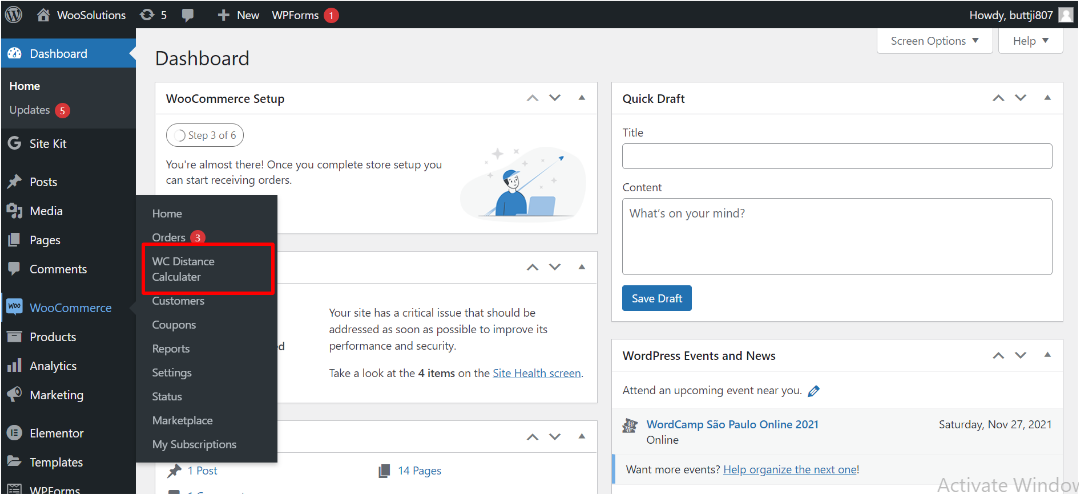
Once installed, you’ll find all settings under “WC Distance Calculator” in your WordPress sidebar under WooCommerce.
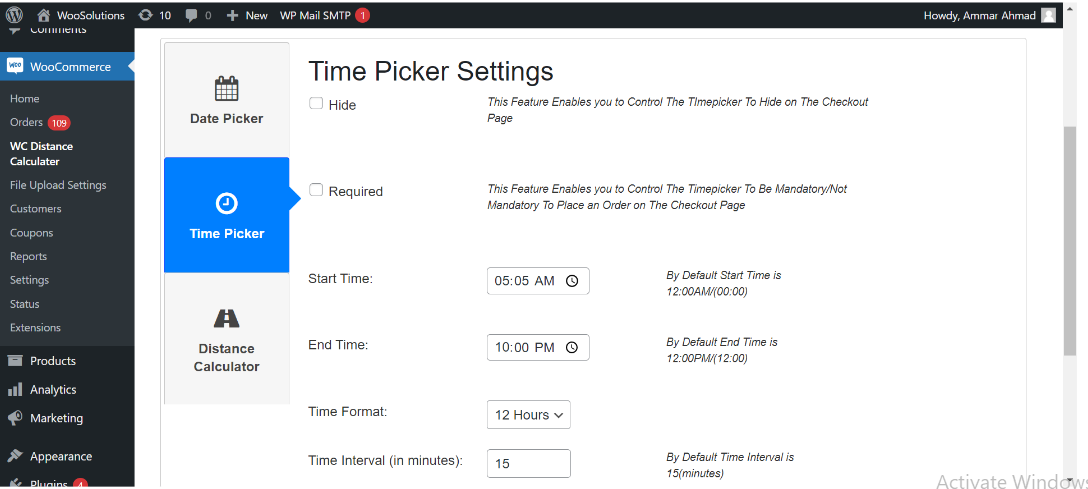
This is where you set your delivery hours and how customers pick a time slot at checkout.
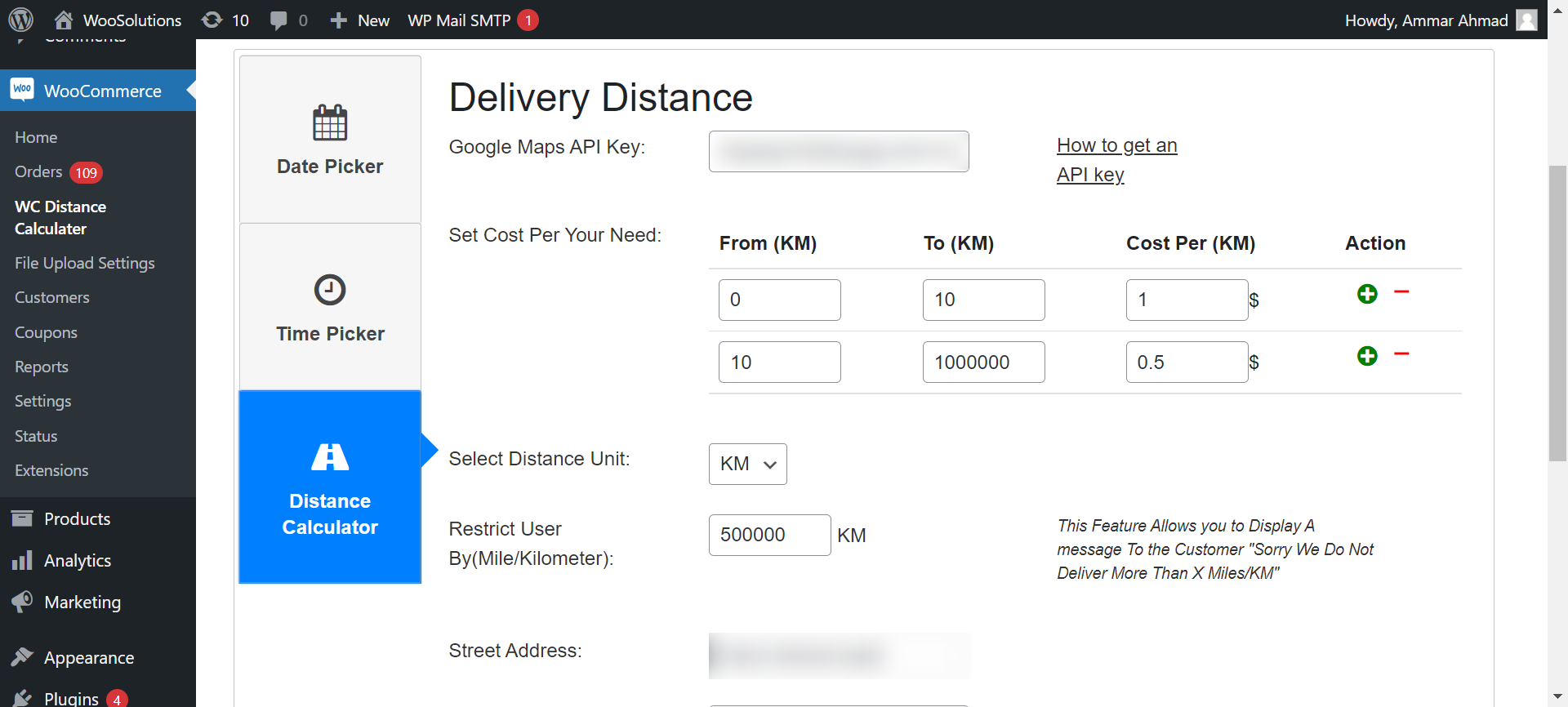
This is where you set your delivery price based on distance — different rates for different ranges.
Watch The Plugin Tutorial
WooCommerce Delivery Cost Calculator FAQ
How do I set up automatic delivery cost calculation in WooCommerce?
Install Calculate Prices Based on Distance For WooCommerce from WordPress.org. It automatically calculates fees using Google Maps for every customer order.
Is Google Maps free for WooCommerce delivery calculation?
Google Maps API offers 10,000 free requests per month. Most small stores never exceed this limit and pay nothing.
How do I reduce delivery costs for my WooCommerce store?
Set a maximum delivery radius to avoid unprofitable far orders. Our plugin lets you restrict delivery beyond a set distance automatically.
Why do I need two separate Google Maps API keys?
Security is our priority. If you use a single API key for map rendering and distance calculations, malicious users can scrape your key from the front-end code and use your billing account for their own apps. By splitting it into a Public Key (Web Restricted) and a Private Key (IP/Server Restricted), your Google Cloud billing is 100% safe from theft.
Stop Guessing — Automate Every Delivery Fee Calculation
Download our free plugin and let Google Maps calculate the exact delivery fee for every WooCommerce order automatically.
Download Free Plugin on WordPress.org
Last Updated: Sep 2026